FantaZ needs to capture players' locations for cash play to comply with state, national, and international law. If you are having trouble entering games because we are unable to capture your location, please see the troubleshooting section below.
There may be various ways to fix the location service issues depending on your device and browser. Please review the section(s) below that match your setup to help enable or troubleshoot the issue.
Enable Location Services
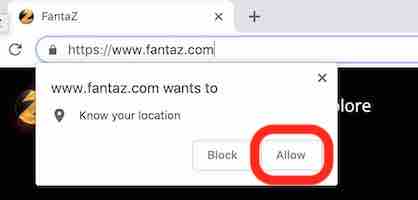
In general, when you see a prompt that asks you to allow FantaZ to know your location, always select Allow or Yes. If you selected Block, you'll need to open the location settings for your browser and remove www.fantaz.com from the block list. You can see those details below.

Chrome: Verify or Enable Location Services
1. Inside the URL input box to the far right, click the location management button, then hit Manage.
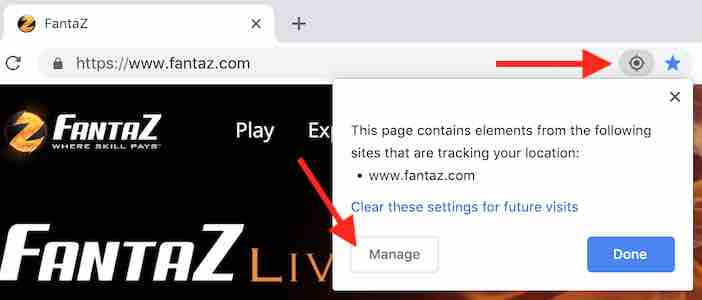
2. Make sure www.fantaz.com is under the Allow section and NOT under the Blocked section. If it is under the Blocked section, remove it by clicking the trash can icon.
Firefox: Verify or Enable Location Services
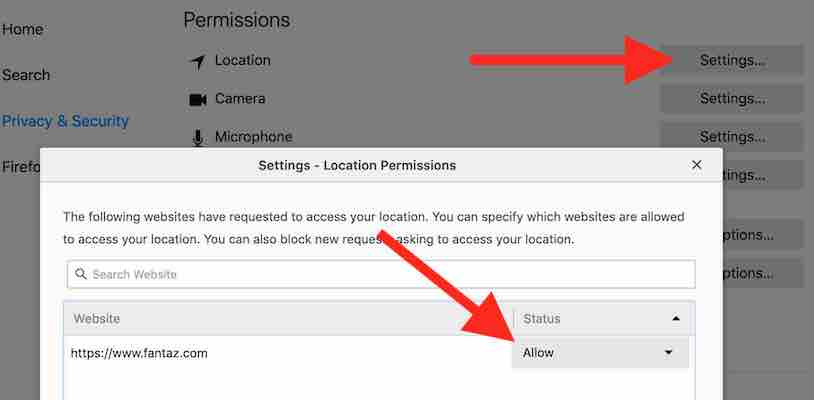
1. Inside the URL input box to the far left, click the site information button, then verify Access your location is Allowed.
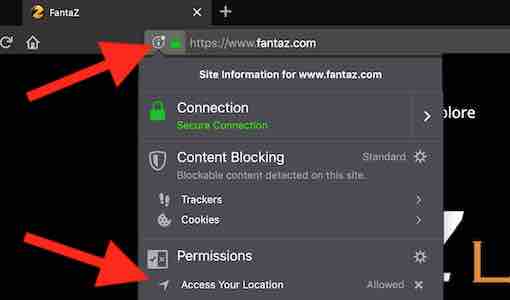
2. If it is not allowed, select the gear icon next to Permissions. Once inside the preferences, select Settings next to the Location option, and make sure www.fantaz.com is allowed and save changes.
Edge and Internet Explorer 11: Verify or Enable Location Services
1. When you navigate to Fantaz.com you'll see a prompt from the bottom to allow FantaZ to capture your location. Please select Always allow, Accept, or Yes.

Safari: Verify or Enable Location Services
1. With Safari open, select Preferences from the Safari menu at the top.
2. Select Websites from the top menu bar, then Location in the left side menu.
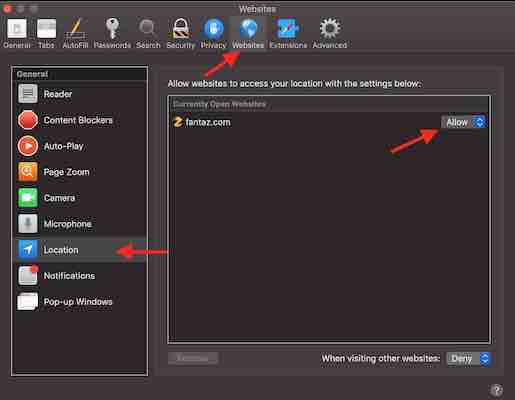
3. Make sure fantaz.com says Allow as pictured above.
Apple Computers: Verify or Enable Location Services
On Apple computers you may have to take additional steps even if the browser location settings is enabled.
1. Go into System Preferences and hit Security & Privacy. Then select the Privacy tab.
2. Inside the Location Services option, make sure Enable Location Services is checked.
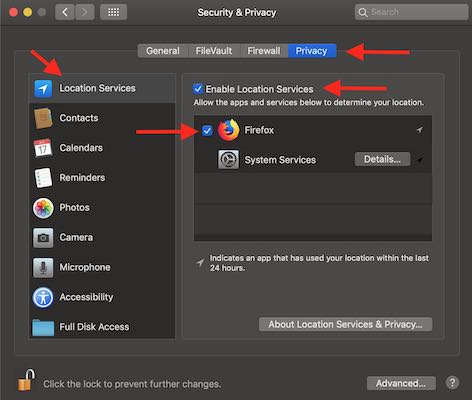
3. (Optional) Also, if you are using Firefox, or any browser in the list, make sure it is enabled as pictured above.
Windows 10 Computers: Verify or Enable Location Services
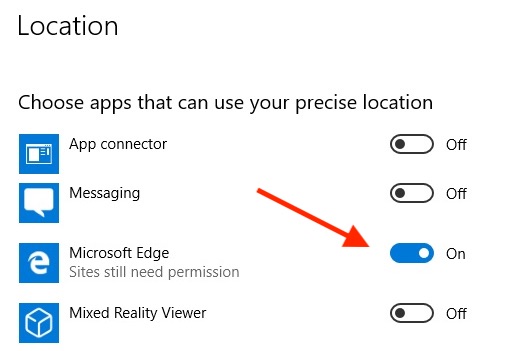
On Windows computers you may have to take additional steps even if the browser location settings is enabled.
1. Click on the Windows Icon and hit Settings. Then hit Privacy.
2. Select Location from the left side menu and make sure Location is on.
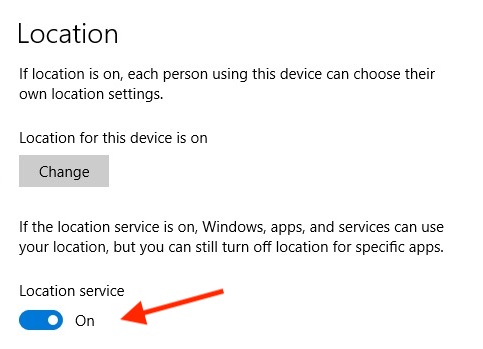
3. Also, scroll down to the browser you use and double check that it has location enabled.